DayZ 1.30 Badlands.
Build for Nasdara.
New terrain. New classnames. More control. Get your DayZ 1.30 Nasdara server set up with map tiles, detailed item stats and dedicated config editors.
By DZconfig
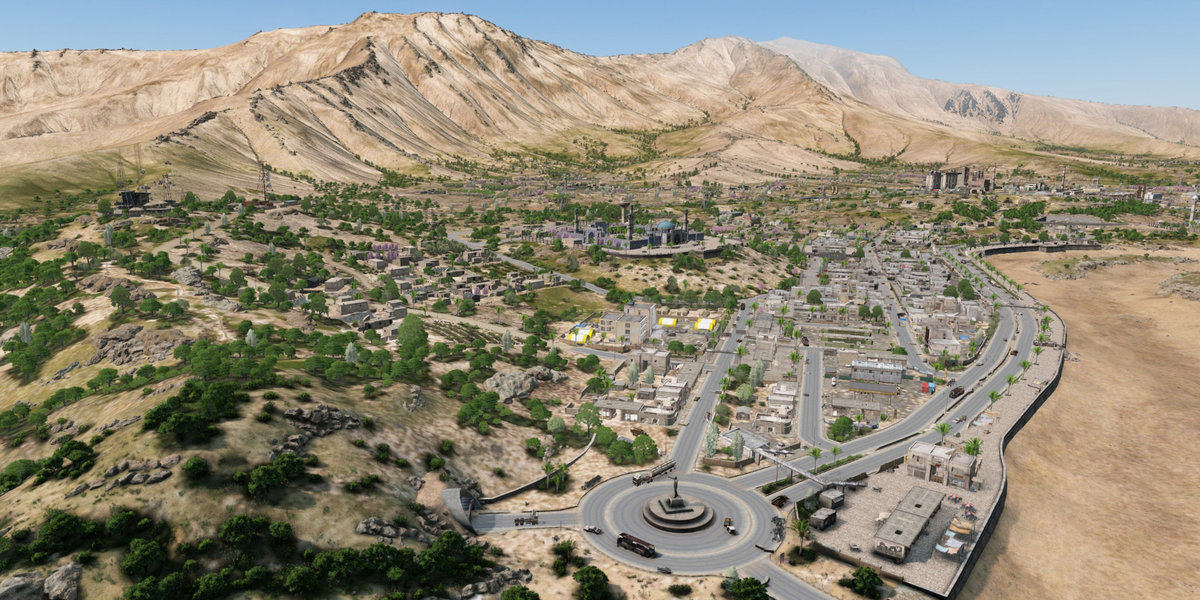
DayZ 1.30 and the Badlands expansion bring a new setting for your community: Nasdara. DZconfig now supports the terrain with map tiles, an updated classname catalogue, item stats and editors for the new server settings.
Whether you are building a new Nasdara server or updating an existing one, you can work from your own files or import the bundled mission defaults, then tune and export your setup from one instance.
Nasdara map tiles for your server configs.
Review player spawns, event positions and territories against the Nasdara landscape. Your coordinates have context: see where a point sits on the terrain before using it in a config file.
Choose Nasdara when creating your instance to use the matching terrain in its map editors. Keep location changes alongside the server configs they belong to.
Explore the map toolsNew classnames. Stats you can use.
Browse the DayZ 1.30 classnames for new Badlands weapons, clothing and equipment. The catalogue includes the Lee Enfield, Luger, MP-18 and Keffiyeh variants, with details to help you make informed loot and loadout changes.
- Weapon stats
- Inspect recoil, sway, firing modes, weight and durability information where available.
- Item properties
- Check inventory size, insulation, protection and other available item stats before choosing gear for your server.
- Compatibility
- Find compatible magazines, ammunition and attachments, grouped by their relationship to the selected classname.
Tune the new DayZ 1.30 settings.
Set the pace of your Nasdara server with editors for gameplay, bunker access, locks and rewards. Each editor works with the corresponding server config file.
Gameplay Settings
cfggameplay.json
Adjust Nasdara sandstorm frequency and lighting, enable bunker broadcasts, and tune external lock protection. A sandstorm frequency of 0 disables storms, 1 is normal and 2 doubles the frequency.
Server Config
serverDZ.cfg
Review the Nasdara mission template and the camera options introduced in DayZ 1.30. Keep gameplay config loading enabled for your Gameplay Settings to take effect.
Bunker Broadcasts
cfgbunkerbroadcast.json
Configure active bunkers, access codes, radio schedules, Morse playback and broadcast positions. Enable bunker broadcasts in Gameplay Settings before using these settings.
External Locks
cfgexternallocks.json
Edit the external lock configuration shipped with Nasdara. Related protection settings are also available in Gameplay Settings.
Bunker Loot
cfgspawnabletypes.xml
Customise the bunker reward crate loadout, including the items it contains and their spawn chances.
From mission files to your Nasdara setup.
-
Create a Nasdara instance
Choose Nasdara as the terrain for your new instance. Your configs and map views stay together in that server workspace.
-
Import your starting configs
Import your current files, or open Config Downloads and use Nasdara Quick Import to select bundled mission defaults. Back up first: importing defaults replaces the selected configs.
-
Edit, review and export
Tune your loot, gameplay, bunkers and map positions in the dedicated editors. Generate your config download, review the output and apply the files to your server.
Already running Nasdara?
Import your current files and fine-tune your setup with the new editors. Quick Import is optional; you can keep working from the configs your server already uses.
Your next server starts here.
Bring your community to Nasdara with map context, a useful item reference and control over your DayZ 1.30 configs.